This is the cropped version of the Roll Call for Class number 4.
Thursday, July 3, 2014
Midterm #4
This is the process of screenshots I took when choosing my avatar. I took my avatar into a summer world. It is a midterm exercise from the Immersive Education course that I am taking at Boston College. The course is called Discovering Computer Graphics. For details, visit the immersive BC portal at http://ImmersiveEducation.org/@/bc
This is the greeting card I created. I opened the screenshot of my avatar in GIMP and cropped out everything besides this. I wrote my name on it and added Come Join Me On An Adventure! using the text tool.
This is my avatar faced forward.
This is my avatar first entering the world.
This is me choosing my avatar.
This is the greeting card I created. I opened the screenshot of my avatar in GIMP and cropped out everything besides this. I wrote my name on it and added Come Join Me On An Adventure! using the text tool.
This is my avatar faced forward.
This is my avatar first entering the world.
This is me choosing my avatar.
Class 3: Entering Meshmoon Virtual Worlds
My favorite Meshmoon virtual world was the Lunar World. I like the Lunar World because I thought it was pretty cool being in space.
This is the first of my three screenshots of my favorite world. This is the view I first had when I entered the Lunar World.
This screenshot is of the Lunar World when I moved over to the left a little bit. This screenshot had a green tint to it.
This screen shot is of the Lunar World when I moved the avatar back. It shows a rocket ship in the left corner.
Midterm 3
This is midterm number 3. The GIMPshop tutorial taught me how to save save images in three different popular web formats. The three formats are JPEG, GIF, and PNG. It is a midterm exercise from the Immersive Education course that I am taking at Boston College. The course is called Discovering Computer Graphics. For details, visit the immersive BC portal at http://ImmersiveEducation.org/@/bc
This picture is the Ball image saved in JPEG format.
This picture is the Ball image saved in GIF format.
This picture is the Ball image saved in PNG format.
This picture is the Ball image saved in JPEG format.
Tuesday, July 1, 2014
Midterm 2
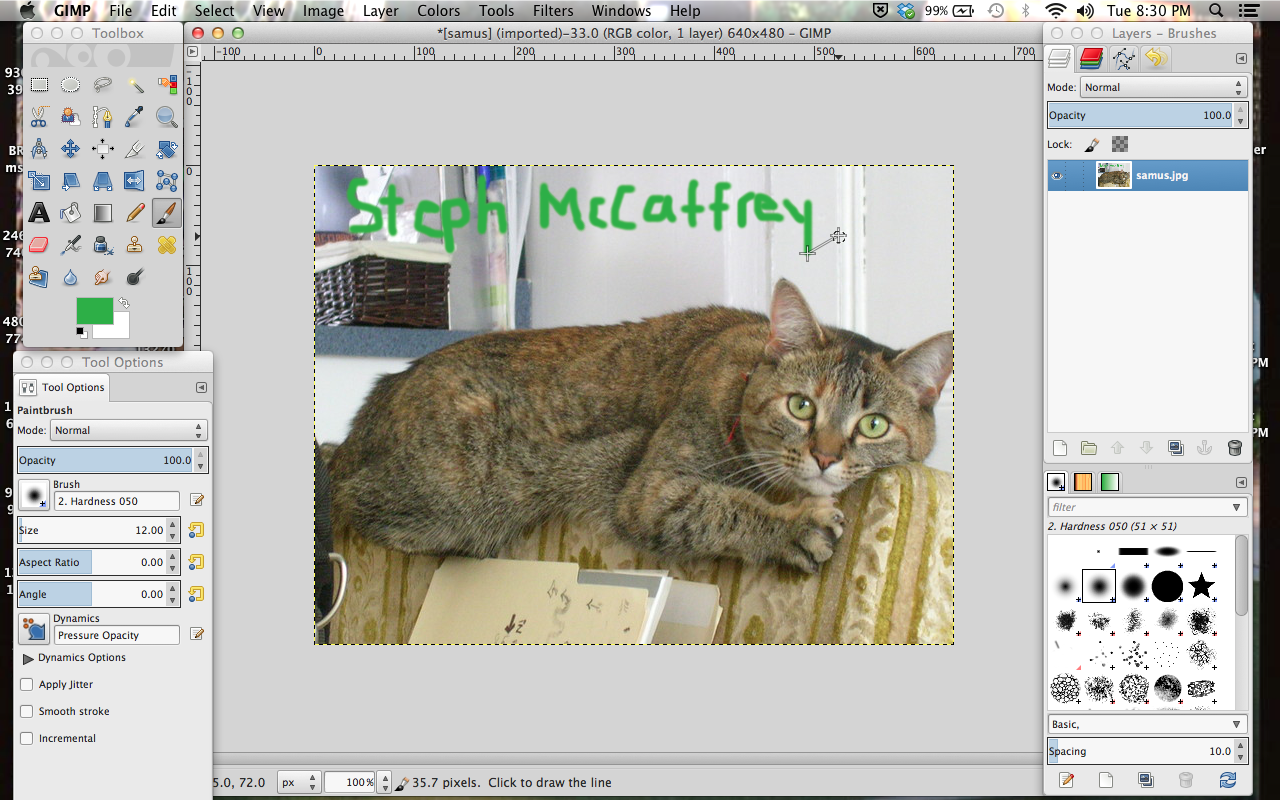
This is Midterm 2. I posted my progress screenshots. Throughout the screenshots I am adding text to the picture of Samus the cat. It is a midterm exercise from the Immersive Education course that I am taking at Boston College. The course is called Discovering Computer Graphics. For details, visit the immersive BC portal at http://ImmersiveEducation.org/@/bc
This screenshot is the tutorial of how to add text to the picture.
This is the picture of Samus the cat opened in GIMP.
This is the final exported picture of Samus after adding text to it.
Midterm 1
This is the screenshot process of taking the redeye out of photos using GIMP. I started with a picture of a child with redeye and used the GIMP Color Picker Tool to get rid of it. It is a midterm exercise from the Immersive Education course that I am taking at Boston College. The course is called Discovering Computer Graphics. For details, visit the immersive BC portal at http://ImmersiveEducation.org/@/bc
This screenshot shows the tutorial of how to remove redeye from a picture.
I opened the picture of the boy in GIMP and wrote my name on the top right of the picture.
I then selected the Color Picker tool to select the color of the boy's eye that wasn't red.
I zoomed in the picture from 100% to 400% so that I could easily change the red from red to the selected color, using the paint brush tool.
This shot shows one eye being filled in with the matching color using the paint brush tool
This is the image zoomed back to 100% in GIMP after removing the redeye.
This screenshot shows the tutorial of how to remove redeye from a picture.
I zoomed in the picture from 100% to 400% so that I could easily change the red from red to the selected color, using the paint brush tool.
This is the image zoomed back to 100% in GIMP after removing the redeye.
This is the final exported version of the picture after removing the redeye.
Class 2, Assignment 3
Screenshot opened in GIMP:
Screenshot before it is cropped:
Final exported screenshot of learning ladder:
Subscribe to:
Posts (Atom)